








































Add a Cluster to an Existing Client Organization
You can assign additional clusters to a client organization after it has been created. The Add Cluster wizard reuses the same Gateway Configuration and Telemetry Configuration steps as the Create Client Organization wizard.
Open the Client Organization
Go to Site Administration → Client Organizations and click the organization’s Name in the list to open its details.
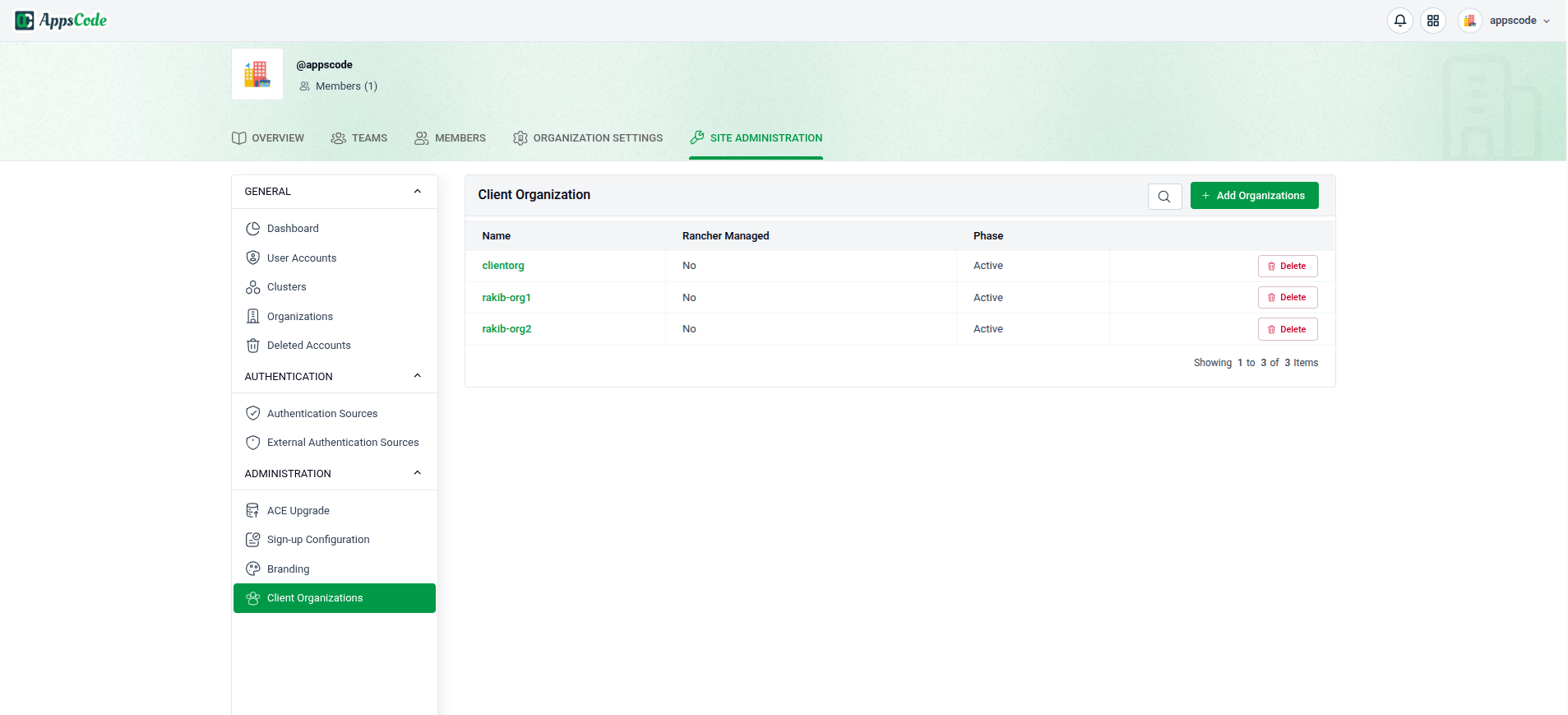
Find the Add Cluster option
On the organization’s details page, the Clusters section lists the clusters already assigned to the organization. Click Add Cluster in the top-right of that section to start the wizard.
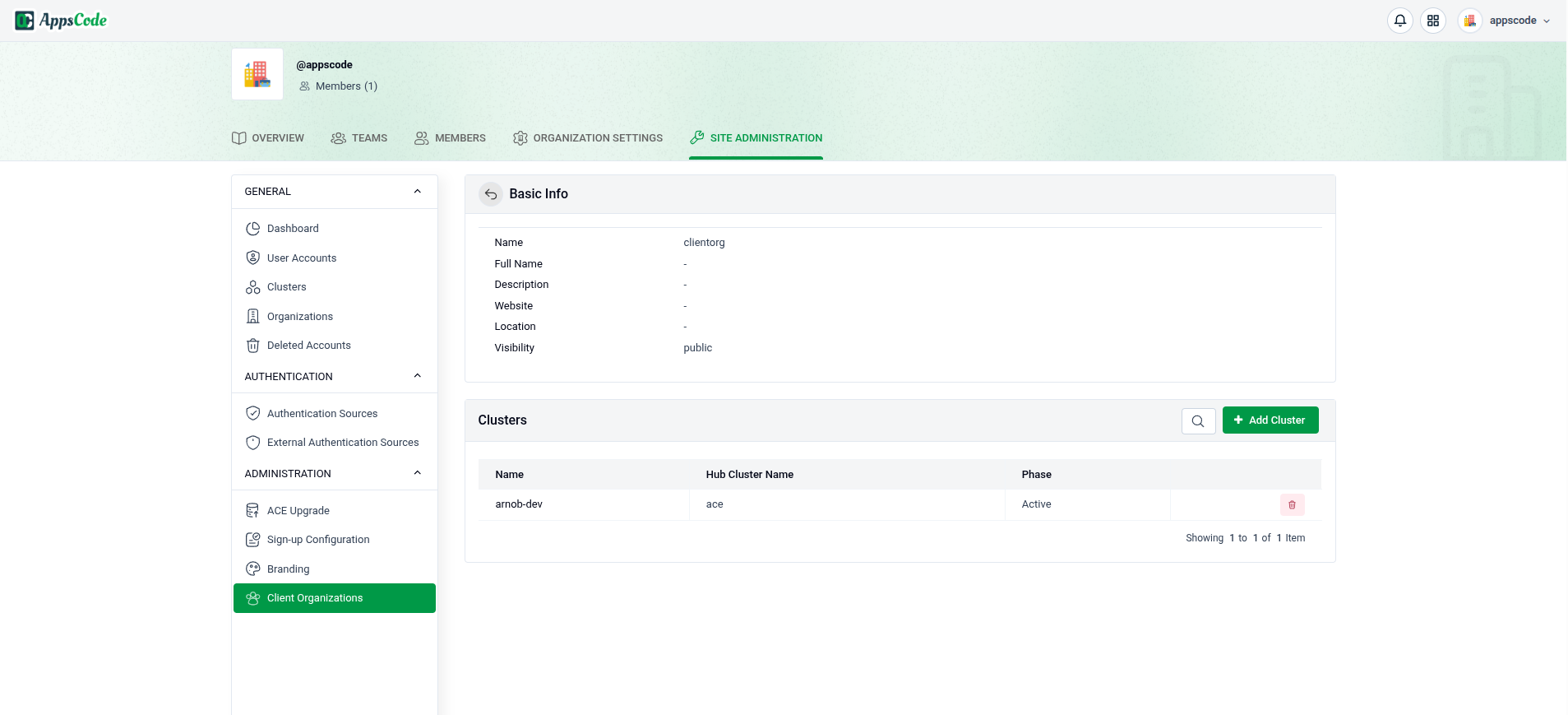
Step 1: Select Cluster
In the first step of the Add Cluster wizard, choose the cluster to assign and optionally tune where its database workloads are scheduled.
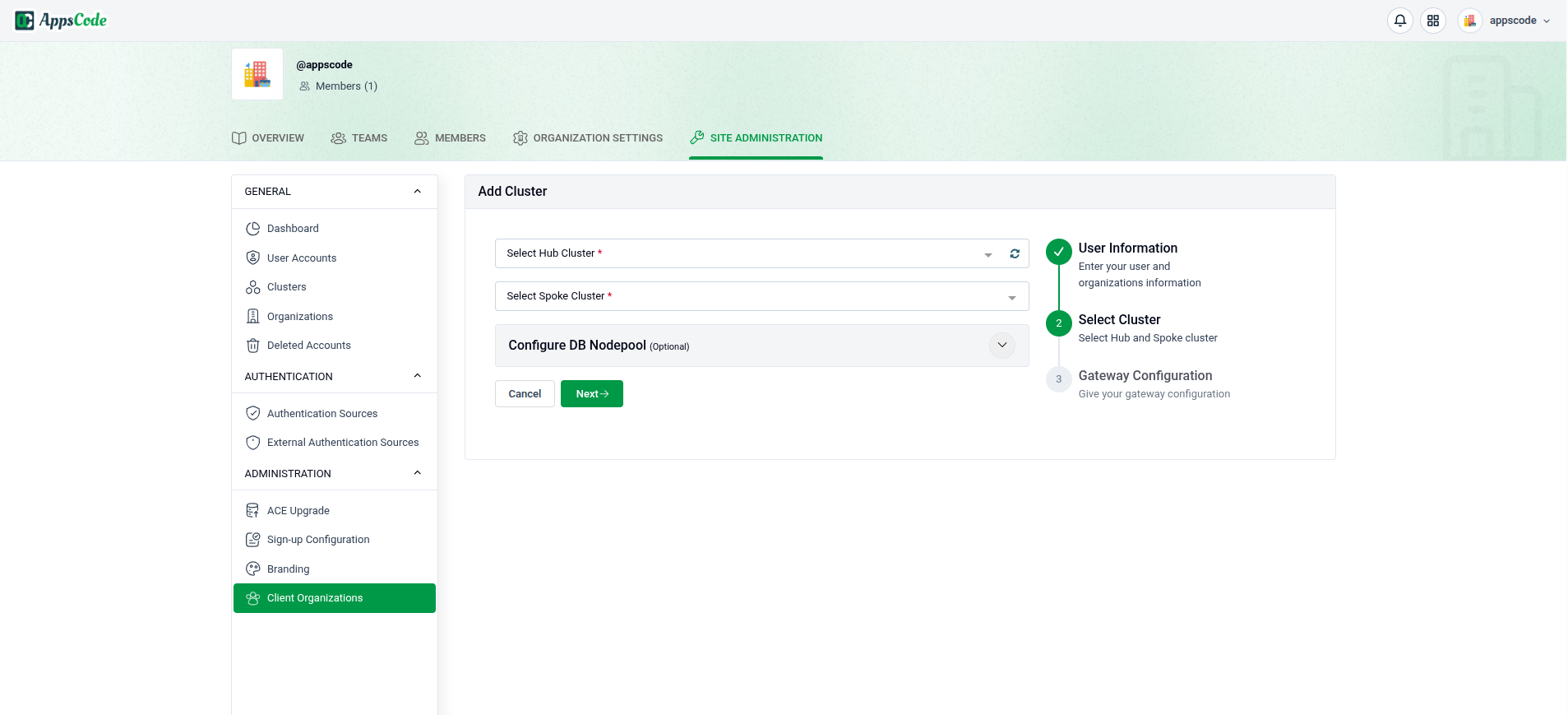
- Hub Cluster (required) — the management (hub) cluster for this assignment.
- Spoke Cluster (required) — the spoke cluster where the organization’s databases run.
- Configure DB Nodepool (optional) — key/value labels used to target specific nodes for database workloads.
- Tolerations (optional) — add tolerations so workloads can be scheduled onto tainted nodes. Each toleration takes an Effect, Key, Operator, and Value.
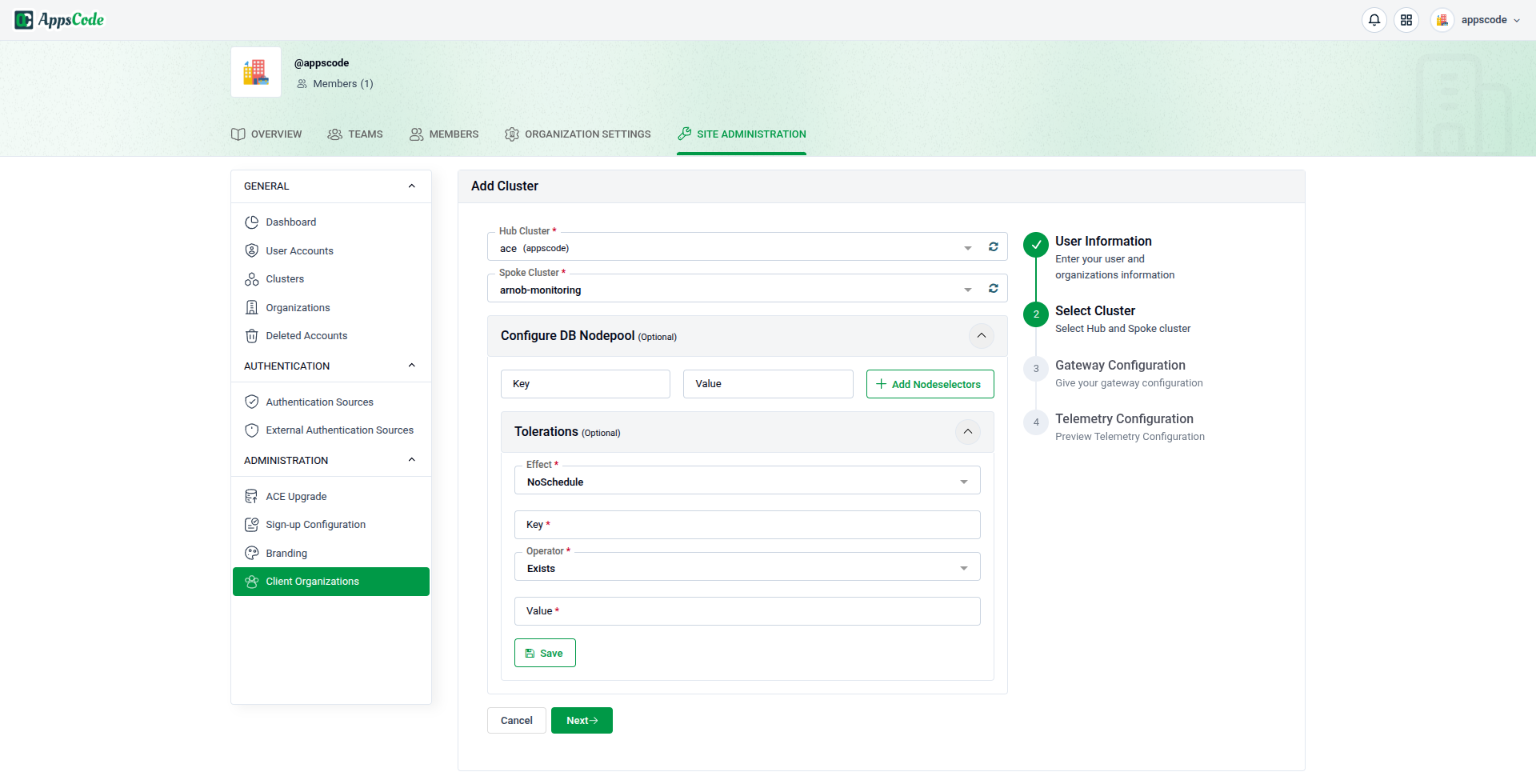
Click Next to continue.
Remaining Steps
After selecting the cluster, the wizard continues with the same Gateway Configuration and Telemetry Configuration steps used when creating a client organization:
- Gateway Configuration — choose a shared or dedicated gateway.
- Telemetry Configuration — configure log and metrics retention.
Configure them as needed, then finish to add the cluster to the organization. The new cluster then appears in the Clusters section of the organization’s details page.